getting embarrassingly upset over obscure anime girl
Added: 19-07-2026
(*Entry is marked as 18+ due to NSFW source material and just generally being crass.)
okay so i wasn't really planning on updating for a bit but i NEED to get this down now while it's still fresh in my head. im so mad. girl when i Get you
a bit ago, i was mindlessly browsing through figure websites (though i never really end up buying anything...) and i stumbled across an old listing for a figure with an insanely cute character design.

generic as it may seem, she kind of has everything i would want in an anime girl. pink hair. tied up side bangs with cute accessories. those cute side hair things. a middle hair parting. shes perfect. its like if i wanted to design a character on purpose to appeal to me but she just looks like that.
at the time, i didn't really think much of it and figured she was from some older anime that i could watch later... until i looked up the source material and found out she comes from a free-to-download eroge.

like hello. Hello. you mean i get to shag her (potentially). ok.
not only that, but the original website for the game from over a decade ago is still up and running. it even has a little site banner/button for your site that i could add here.
pretty much everything on it is still available... apart from the game itself. it was also never translated.
as of a few hours from discovering the game, the most i've seen of it and her route are from gameplay videos on nicovideo. the majority however are locked behind a login-only restriction.
i did also find a link to download the game(?) on VNDb, but i'm a little apprehensive about checking it out. since i don't usually download games, much less old eroge, all this is unfamiliar territory to me... :P i just happen to be going through the depths for this one anime girl i found cute.
at the very least, there's a gallery page on the website that contains what looks like a good number of the CGs from the game (including the sexual content- while there's a warning on the page before you enter it seems to be inconsistent... which isn't getting fixed any time soon). looking at it completely backfired because that made me want to play it for her even more

(LIKE. SHE EVEN HAS THE CUTEST CG OUT OF ALL THE H SCENES. ITS NOT EVEN FUNNY HOW MUCH SHE APPEALS TO ME. just my baka life i suppose)
anyway, what i'm getting at is if anyone knows how i can get se • kirara (2009) on my computer my guestbook is waiting.
please i need this (only half joking)
shrines and the inexplicable fear
Added: 14-07-2026
i finally got to uploading 2 of my shrines...! i've had them ready for quite a while now but never really got around to most of the content itself :P. i'd quite like to add more though, especially to my spamton x tenna shrine which is a huge wip right now. it is hard for me to put things into words when others have put it far more eloquently than i have, though, plus it's been so long since the original bomb hit us that i'll probably have to replay all of it to recall most of my thoughts on them. but the picture we get of their relationship has just gotten better and better with more info over time. tnsp forever.
i did consider making a "proper" deltarune shrine with some of my thoughts related to the actual game too. i deeply admire DR for its story, ost, and just the sheer love poured into it and wouldn't mind doing a write-up about it... but i don't want to be boring (no offense).
to me, shrines on personal sites are for dedicating to topics so niche you wouldn't be able to get them from anyone else. there's already plenty of lovely DR fanpages out there. so what can i offer about this game that i specifically am passionate about that hasn't already been said a million times before? let me speak at length about the green pippins with less than five minutes of screentime until he's unrecognizable.
but also i'm just inexplicably really scared of other fans of this game, lol. which is kind of why this site has all its 18+ tags and NSFW markings despite the lack of anything of substance on it right now. i don't wish to draw too much attention to this site in general either, i want it to be a place where i can be a bit more candid talking about the stuff i like than, say, on social media.
it does feel excessive to take such measures to hide(?) this site and i would love to care a lot less. i promise the actual "dark/NSFW" stuff i make is terribly milquetoast and plain (and if i ever post any r18 work on here it'll really just amount to genitalia and bodily fluids... seriously, not a huge deal...).
i don't have plans for future shrines as of now, so i'll continue to work on my current ones (・ω・ )...
How to make GIF stamps using Ezgif
Added: 06-05-2026
A quick guide on making animated GIF stamps using the website Ezgif.com. There's already quite a number of articles like this out there but I figured I'd make one for my own reference.
1. Preparing the GIF and stamp frame
Decide what GIF you will be using for this stamp first.
If you plan on making one from a video, Ezgif also offers a mp4 to GIF function:
1. Click on "Video to GIF"
2. Click on "Upload video"
3. Click on Convert to GIF!
Here I usually change the default frame rate from 10 FPS to 12 FPS, but you can do whatever you prefer :P.

We'll be using a GIF of the song
ドリーム・キス by Toiki. for this guide.
Most stamp frames usually come in the dimensions
±99x57, like this:

2. Resizing the GIF
Once we have our GIF, click
Resize image!to resize the GIF so it fits the dimensions inside the frame.
For this frame, the dimensions needed are
94x50.
There should be a dropdown menu on the bottom right with the following options:
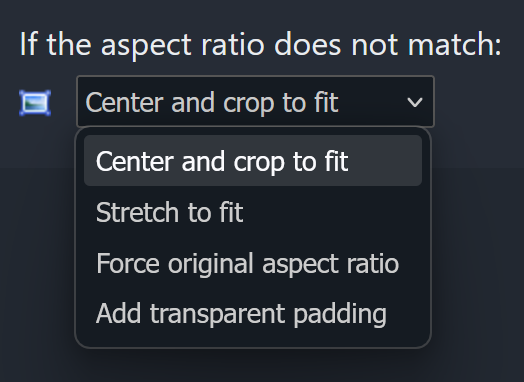
Select either "
Center and crop to fit" or "
Stretch to fit" depending on which one looks better. The other two options will change the dimensions and the GIF will no longer fit inside the frame, which we don't want.
3. Overlaying the frame
Now that our GIF has been resized to 94x50, click "
Save" at the end of the row of icons.
Then, click "Effects" and find "Overlay" under the topmost navigation bar on the screen. Upload the resized GIF here.
Immediately after uploading the GIF, click the thin blue button below it that says:
Extend canvas size (use if overlay exceeds the base image size)
This will add transparent padding around the GIF so that we can reposition the frame onto it. Next, upload the frame.
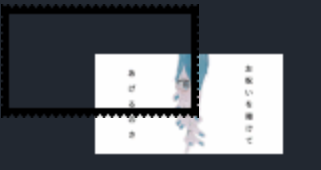
Now we have to adjust the overlay position so the GIF fits inside the frame. For this template, set the overlay position on the left to
44, and the top to
22, and the overlay width to
99 and height to
57.
The stamp should turn out like this:
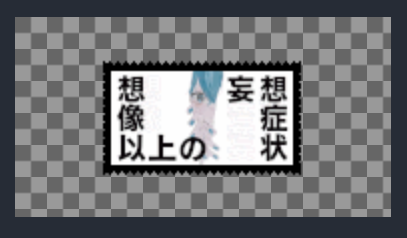
Finally, crop away the transparent section. Click on "Crop".
You should see 4 input boxes in the order
Left, Top, Width, and
Height.
Enter the values in the exact same order as the previous step (
44/
22/
99/
57), and click
Crop image!
The final stamp:

That's it!